Here are the detailed step-by-step instructions with screenshots to walk you through the process of online entries. Entries are easy to make so please do not let the lengthy instructions scare you. The screenshots take up a lot of the pages. We recommend printing these instructions for use during registration.
If you have questions about rules or the registration process related to departments, divisions, or classes, please consult the current Fair Regulations Book.
If you have lost your password, please click the “Forgot your password?” link on the registration screen. The system will send a message containing your password to the e-mail address you previously provided. If you have any other technical difficulties with online registration, please contact the Holt County Extension Office at 402-336-2760.
Entry Deadlines:
Entries will be open for a set time period. See the newsletter/emails for the specific time periods. Once deadline has passed the system will close down and you will not be able to add more entries.
- Pre-Fair – July 6
- All Fair – All Static, Shootings Sports, and Livestock – July 21
General Information
- Having the current Fair Regulation Book with you when entering will be helpful. Some class numbers on the website may differ from what is printed in the book.
- Please submit the entries that you intend to complete.
- Supporting information is required to be submitted with many exhibits on Entry Day of Fair. Please refer to the current Fair Regulation Book and read the rules in their entirety for each area you plan to exhibit items in.
- Livestock Exhibitors - Please make sure to have your Affidavit Sheets with tag numbers available as those will be needed to complete the entries. Please remember to sign up for Showmanship.
- Horticulture/Floriculture Exhibitors - For the number of tags that you need you will create that number of generic entries. You will receive the Generic Floriculture/Horticulture Tags as you have done in the past. You will need to fill in the class number; class name; and variety (cultivar) name on the printed tag that you receive. Please turn in a sheet on entry day of county fair listing your exhibits.
- Optional ShoWorks Passport - When you log into ShoWorks you will see there is an option to log into Passport in the drop-down menu. ShoWorks Passport is an app that will link your ShoWorks account to your phone. Create an account in the web browser and then download the app onto your phone. After you make your entries online, they will show in the app as long as you are logged into your ShoWorks Passport account online. Passport allows exhibitors to create their own, free, permanent account and keep up with their entries including seeing instant updates to those entries when changed by the fair. They can keep their account information year-to-year and across other fairs and even reuse past entries from their own library of entries, saving them time and errors. Create entries across over 1,000 participating fairs in North America, directly from within the ShoWorks Passport app for iPhone or Android or a web browser. ShoWorks Passport can also be used to send push notifications to exhibitors with announcements.
4-H and FFA Families are registering exhibitors themselves. 4-H Leaders, County Extension staff, and FFA Advisors should NOT be registering exhibitors online at (web site available soon). If you have problems getting the link to work – just type it in manually.
Step 1: Register
Go to Holt County Fairwire. Please read the instructions in the middle of the page. Click on Sign In at the top right of the screen.
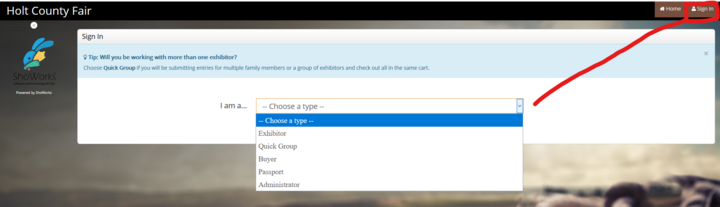
Click on the drop-down menu in the middle of the screen to choose a type.
- To register one exhibitor at a time, choose Exhibitor.
- To register multiple exhibitors, you may choose Quick Group. Quick Groups are useful for families with multiple exhibitors. See instructions below.
- Complete the first and last name of the Exhibitor.
- Click I am a new exhibitor or have yet to register this year. After your profile is created, you will click I have previously registered this year each time you log on to the site.
- Complete all registration information for the exhibitor. You will be required to create a password that you will use each time you log on to this site. Write them down so that you can log in again later to add exhibitors or entries or to view your registration history. You can have all of your passwords be the same for your family or you can have individual ones for each exhibitor.
- You will choose a Default Club. The default club will automatically appear for each exhibitor and entry on later screens. Please note that as you add exhibitors and entries, you may need to change from the default club if registering both 4-H and FFA exhibits. NOTE: If exhibitor showing both 4-H & FFA, DO NOT create a new registration for both, just change club for each entry.
- Click Continue. Review the registration information you entered and click Continue. Go to Step 2.

To create a Quick Group, choose Quick Group from the drop-down menu as your sign in type. Enter your Group Username. Click I am a new group and Continue. Create a password for your Quick Group and Continue. Review the group information you entered and click Continue. Click Begin adding Exhibitors and Entries. Go through the Sign-in process for each exhibitor. You will be asked to create a password for each exhibitor. You may use either your Quick Group password or the log in and password for any individual exhibitor in your group to log into the site after your profile is created.
Step 2: Entries
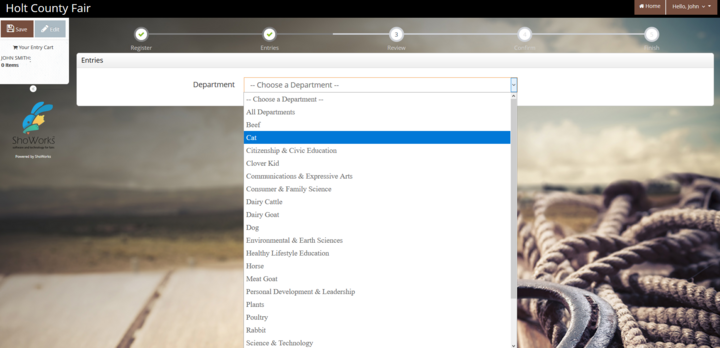
- Choose a Department from the drop-down menu for your first entry.
- Choose a Division from the drop-down menu for the entry. Please read any Special Instructions for the division that may appear at the top of the screen.
- Choose the Class from the drop-down menu for the entry. It will be helpful to consult the Fair Book when choosing Divisions and Classes. If you are entering a class that designates an age group, make sure you are selecting the age the exhibitor was on January 1 of current year.
- Description - This is what will show on the entry tag so be descriptive so that if tag becomes separated from exhibit, we would be able to figure out which exhibit to attach it to. Static exhibits will need a description (example: Photography Description - waterfall; Human Development description - Tic Tac Toe Game). The Horticulture, Floriculture and Special Garden Project will need to have the Class Number, Class Name and Variety (Fill it in under Description) filled in on every tag. See this Sample Tag Sheet for more information. This is a required field.
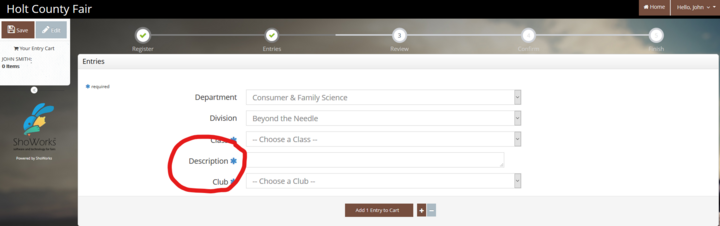
- You must select a Club for each entry. This is where you would split your entries under your primary 4-H Club,
4-H Shooting Sports Club or your FFA Chapter. In this example below, one exhibit is 4-H, and the livestock exhibit is FFA.
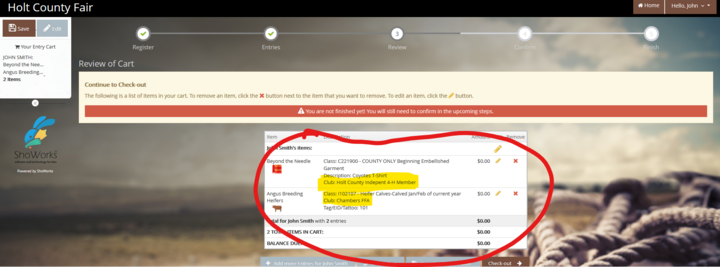
- Complete all required information. They will have a blue * by the box.
- Tag Identification or Tattoo - Some entries require Tag Identification and some entries require Tattoos. Please enter complete Tag/EID/Scrapies/Tattoo number for all animals.
- Pen of 3 Animals - If you are planning to show all of your Pen of 3 animals individually, please make 3 individual entries with the 3 different tag numbers and then the Pen of 3 entry (that class will not require tag numbers).
- Click Add entry to cart.
- If you have more entries to make, click Add different entry to add an entry in a different Department or click Add similar entry to add an entry from the same Department and repeat the steps above.

- Then click on Autofill from previous.
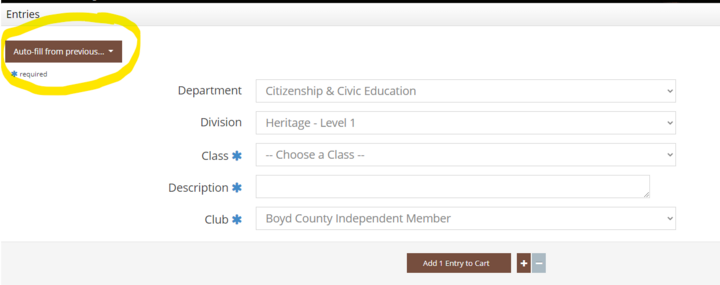
- When all entries are added to your cart click Continue.
Step 3: Review
- Review your entries for accuracy, edit or remove entries.
- Here you can Enter more Entries for the current exhibitor, Empty Cart to start all over, Save this cart for later or Check-out.
- Note that your cart and login information are not saved until you click Save This Cart. Your exhibits are not registered until you click Check-out.
Quick Group Users: You may click Add Entries for a different Exhibitor. This will take you back to Step 1 to create a new exhibitor within your Quick Group and enter projects for them. When you have entered all group members and projects, click Check-out to check out for all of your exhibitors at once.
Step 4: Confirm
- After you click Check-out, you will be taken to the Confirm page. You must type YES in the red dashed box to indicate you agree with and will abide with the terms of the current County Fair Rules and Regulations.
- Click Submit.
- You may print and request an email of the receipt. IMPORTANT – This receipt is the ONLY invoice given and contains your conformation number. (We recommend you keep a copy of the detailed receipt.)
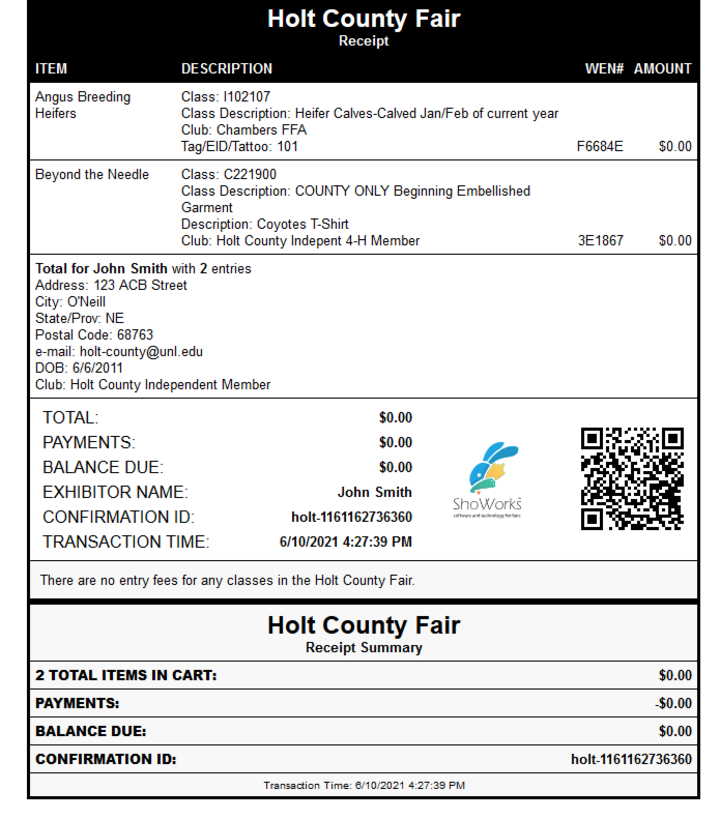
- If everything is correct, click Finish.
- You will also have the option of logging back into your account to add more entries until the deadline has passed. Once the deadline date has passed the system will close down and you will not be able to add more entries.
- Remember to “Log Out” from the website.
Congratulations! Your projects are registered for the Holt County Fair. You may review your transaction by clicking Go to my Account Summary. You may view or edit your profile or sign out by clicking on your name in the upper right corner of the page.
Communication Events
- Clover Kid - Reading
- Communications - Speech, PSA, Digital Video, Presentations
Pre-Fair Day Departments
- Clover Kid - Fashion Show, Sewing, Table Setting Contest, Talent Contest
- Clover Kid Judging Contests - Horticulture Judging Contest, Family and Consumer Science Judging Contest
- Communications and Expressive Arts - Teaching Presentation
- Consumer and Family Science - Beyond The Needle, Crochet, Fashion Show, General Clothing, Knitting, Quilt Quest, Shopping in Style Exhibits, Steam Clothing 1, Steam Clothing 2, Steam Clothing 3
- Personal Development & Leadership - Pre-Fair Day Judging Contests - Family and Consumer Science Judging Contest, Horticulture Judging Contest, Talent Contest, Table Setting Contest, Culinary Challenge Contest
County Fair Departments
- Citizenship & Civic Education - Citizenship, Heritage, Seeing i2i
- Clover Kids - Celebrations Around The World, Leap Into Careers, Crafts, Theater Arts, A Space For Me, Just Outside The Door, Bugs, Making Food For Me, Floriculture, Horticulture, Vegetable Sculpture, Safety Adventure, Aerospace, Building Item, Recycled, Workshop Exhibit
- Communications & Expressive Arts - Express Yourself, Officer Reports, Club Exhibit, Photography, Poster
- Consumer and Family Science - Art Element and Design Principles, Design Decisions, Design My Place, Heirloom Treasures/Family Keepsakes, Human Development, Money Fun-damentals, Money Moves, My Financial Future, Portfolio Pathways, Sketchbook Crossroads
- Environmental & Earth Sciences - Conservation & Wildlife, Forestry, Harvesting Equipment, Other Natural Resources, Range Management, Shooting Sports Exhibits, Taxidermy, Wildlife Habitat
- Healthy Lifestyles - Cake Decorating, Cooking 101, Cooking 201, Cooking 301, Cooking 401, Fire Safety, Food Preservation - Freezing, Food Preservation - Drying, Food Preservation - Boiling Water, Food Preservation - Pressure Canning, Foods - General, Safety, Weather Safety, YOUTH in Motion/Health
- Personal Development & Leadership - ESI: EntrepreneurShip Investigation, Project Disaster, Workshop Exhibits, You Design It
- Plants - Field Crops, Floriculture, Horticulture, Landscape, Special Garden Project, Weed ID
- Science Engineering & Technology - Computers, Electricity, Entomology, Geospatial, Miscellaneous SET, Models, Building Items and Collections, Premier Science, Recycled Item, Robotics, Rocket/Aerospace, SET Physics/Power of Wind, Veterinary Science, Welding, Woodworking
- Shooting Sports - .22 Rifle, Air Pistol, Air Rifle, Archery, BB Gun, Hunting and Outdoor Skills, Muzzleloading, Small Bore Pistol, Trap Shooting
Livestock Departments
- Beef - Beef Classes, Beef Showmanship
- Cat - Cat Classes, Cat Showmanship
- Clover Kid Animal Science - Cat, Dog, Poultry, Rabbit, Small Animal, Bottle Lamb, Dairy Goat, Meat Goat
- Clover Kid Fair Judging Contest - Livestock Judging Contest
- Dairy - Dairy Cattle Classes, Dairy Showmanship
- Dairy Goat - Dairy Goat Classes, Dairy Goat Showmanship
- Dog - Dog Classes, Dog Showmanship
- Horse - Horse Classes, Horse Showmanship
- Meat Goat - Meat Goat Classes, Meat Goat Showmanship
- Poultry - Egg, Poultry Classes, Poultry Showmanship
- Rabbits - Rabbit Classes, Rabbit Showmanship
- Sheep - Sheep Classes, Sheep Showmanship
- Small Animals - Other Small Animals
- Swine - Swine Classes, Swine Showmanship
- Requesting Stalls/Pens: Due to Limited space, not every individual exhibitor will be able to have a stall/pen for just his/her animals. Families will be put together. Only request the number of stalls/pens that you will actually need. Enter your stalls/pens at go.unl.edu/stallassignment Fill in number of head and number of stalls/pens needed. This is a separate site.